The Email module in Encore Pro is a robust, four-stage workflow designed to help you move from audience selection to creative design and final audit with ease.
1. The Setup Phase
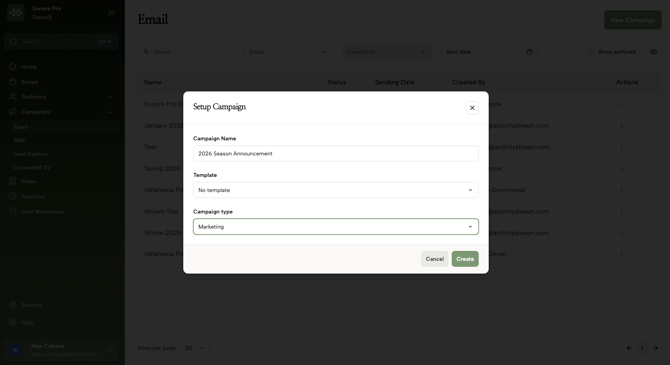
To begin, navigate to Campaigns > Email and click New Campaign.
-
Naming Your Campaign: This name is for internal tracking only and will not be seen by customers.
- Selecting A Template (Optional): Templates allow for campaign designs and details to be pre-selected. Using a template is not necessary, but it definitely saves time!
-
Selecting Campaign Type: Choose Marketing for promotions and newsletters, or Transactional for pre-visit information and receipts.
2. Crafting Your Audience
You can target your campaign using the work you did in the Audience module.
-
Dynamic Targeting: Add filters to select specific groups, such as "Customers who purchased tickets in the last year".
-
Nesting Logic: Use "AND/OR" logic to narrow your list. For example, targeting users who booked for Cinderella AND are interested in Rodgers & Hammerstein.
3. The Message Details
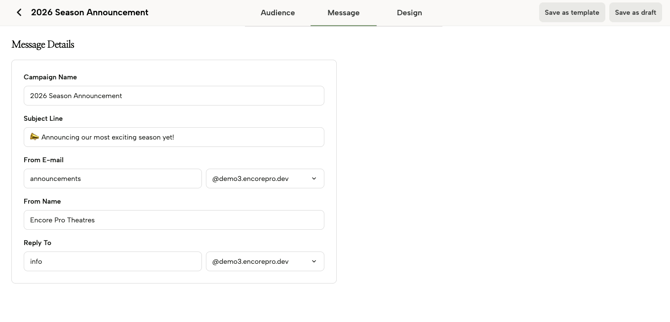
You must provide a Subject Line, a From Email, a From Name (e.g., your venue name), and a Reply To address.
4. The Drag-and-Drop Designer
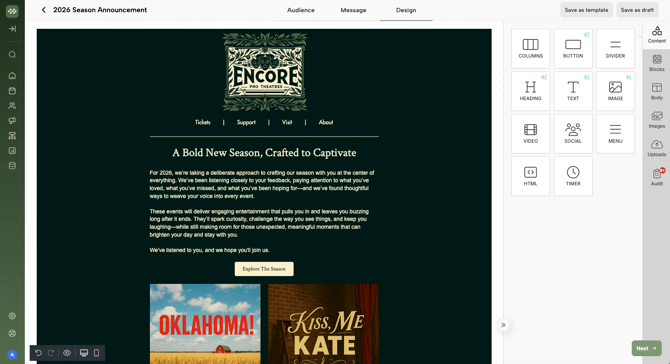
The designer uses a intuitive block-based system to build your email.
-
Structure vs. Content: Drag Columns (structure) into the workspace first, then drop Content Blocks (text, images, buttons) into those columns.
-
Clicking on a content block inside of the campaign layout will open up a block panel on the right-hand side that allows for editing and adjusting of the block and its contents
- Columns that contain one or multiple content blocks can be saved to the "Blocks" menu by clicking on the 💾 icon in the lower-right corner of the block.
-
-
Block Types: Available blocks include Headings, Text, Images, Video (requires a YouTube/Vimeo URL), Social Icons, Menus, and Countdown Timers.
-
Internal Image Editor: Clicking an image block allows you to access a built-in editor where you can crop, apply filters, and even add stickers or rounded corners without leaving the platform.