Encore Pro is designed to serve as your mission control for live entertainment management. This guide walks you through the navigation architecture and the data science behind your primary dashboard.
1. The Navigation Framework
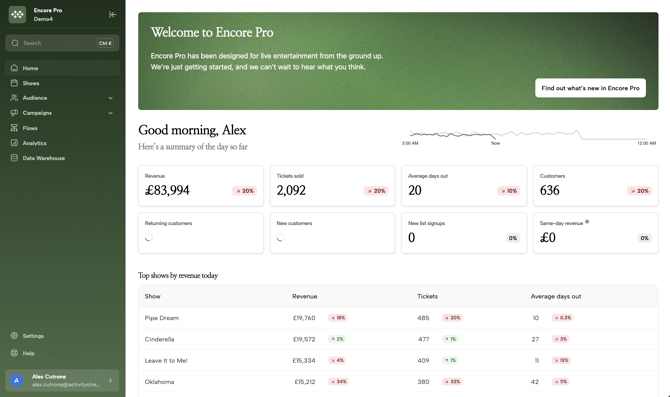
The platform utilizes a Collapsible Global Sidebar on the left to maximize your workspace.
-
Venue Switcher: Located at the top of the sidebar. If your account manages multiple theaters or arenas, click the venue name to switch environments instantly.
-
The Command Center (Search): Use the search bar or the keyboard shortcut
Cmd/Ctrl + K. This isn't just a basic search; it allows you to jump directly to a specific production (e.g., "Cinderella") or a saved audience segment without manual clicking. -
Sidebar States: Click the "hamburger" icon to collapse the menu into a skinny icon bar. This is highly recommended when using the Email Designer or viewing wide Analytics tables..
2. High-Level Data Analysis
The Home Dashboard provides a real-time pulse of your sales.
-
The Sales Trend Graph: This chart compares "Today" (Dark Green line) against "Yesterday" (Light Gray line). Hovering over any point on the graph gives you the specific revenue total for that hour.
-
Daily KPI Cards:
-
Revenue: Total gross sales for the current calendar day.
-
Tickets Sold: Volume of units moved.
-
Average Days Out: A critical metric showing the lead time between purchase and the event date.
-
Returning vs. New Customers: A breakdown of database growth vs. loyalist retention.
-
-
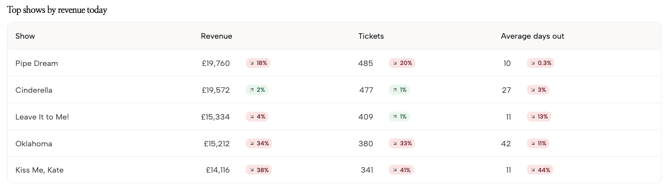
Leaderboard (Top Shows): This table ranks your current productions by revenue generated today. Use the percentage indicators to see which shows are trending upward compared to their performance 24 hours ago.